
How to Generate Barcodes from Excel/CSV in Bulk (Step-by-Step Guide)
If you have a spreadsheet full of product codes, SKUs, or serial numbers, you are already 90% of the way to having finished barcodes. You do not need expensive software or a complicated mail-merge setup. With a free bulk barcode generator, you can turn a column of codes in Excel into up to 500 print-ready barcodes in a few minutes.
This guide walks you through the entire process: preparing your spreadsheet correctly, exporting a clean CSV, choosing the right barcode type, generating the batch, and printing professional labels. Follow the steps in order, and pay special attention to Step 1 — most barcode problems start with a messy spreadsheet, not with the generator.
All you need is your spreadsheet, a bulk generator that accepts CSV import (the free tool on this site handles up to 500 barcodes per batch with no signup and no watermark), and a printer if you need physical labels. Nothing to install — it runs entirely in your browser.
Step 1: Prepare Your Excel File (The Right Way)
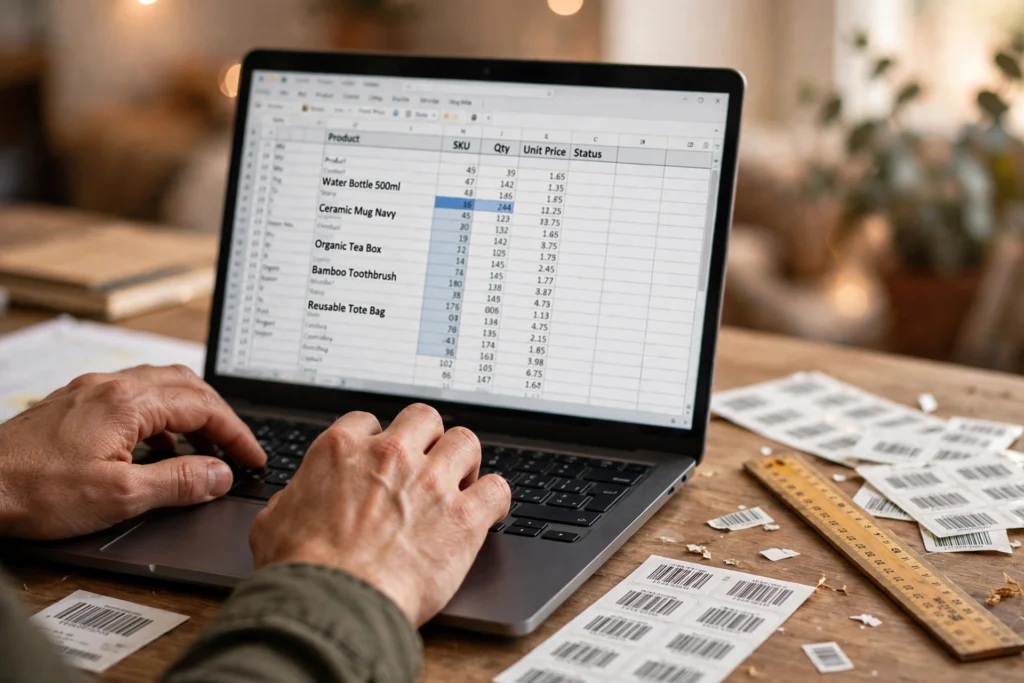
A bulk generator encodes exactly what you give it, so dirty data means bad barcodes. Five minutes here prevents nearly every common problem.
Put one code per row, in a single column
Your codes should live in one column, one code per row. If your sheet has a header row (e.g. the word “SKU” in cell A1), delete it — otherwise the generator will create a barcode for the word “SKU” too.
Fix the leading-zero trap (the #1 Excel mistake)
This catches almost everyone. Excel treats entries as numbers by default, so a code like 00123456 becomes 123456 the moment you type it — and the leading zeros are gone for good. For barcodes like EAN-13 or ITF-14, where every digit counts, that silently produces wrong barcodes.
Do this before typing or pasting your codes: select the column, right-click → Format Cells → Text → OK. Now type or paste — leading zeros are preserved.
If the zeros are already lost, formatting as Text afterwards will not bring them back. Re-enter the data, or rebuild it with a formula such as =TEXT(A1,"000000000000") (adjust the zero count to your required length), then copy and Paste as Values into the Text-formatted column. The same Text formatting also stops Excel from converting codes longer than 15 digits into scientific notation (e.g. 6.12345E+17), which destroys the data.
Clean the data
Run through this quick checklist before exporting:
- No blank rows mid-list — they can generate empty or invalid barcodes.
- No extra spaces around codes — use Find & Replace (Ctrl+H) or the
=TRIM(A1)formula. - No duplicates unless genuinely needed — check with Data → Remove Duplicates.
- Consistent length where the symbology requires it: EAN-13 needs exactly 12 digits (check digit auto-calculated), UPC-A needs 11.
- Allowed characters only — Code 39 accepts uppercase letters, digits, and a few symbols (no lowercase); Code 128 accepts the full ASCII set and is the safest choice for mixed data.
Step 2: Export Your Spreadsheet as CSV
The generator’s CSV import expects a plain CSV file. Exporting takes seconds:
- In Excel, go to File → Save As and choose CSV UTF-8 (Comma delimited) (*.csv) as the file type.
- Save the file somewhere easy to find, like your Desktop.
- Excel may warn that “some features in your workbook might be lost” — that is fine. Click Yes; formatting is irrelevant for barcode data.
Two things to double-check in the exported file:
- Open the CSV in a plain text editor (Notepad on Windows, TextEdit on Mac) and confirm each line contains exactly one code, with no quotes, commas, or extra columns sneaking in. If your codes contain commas, save with a semicolon delimiter instead and check what your generator accepts.
- Do not re-open the CSV in Excel. It reapplies number formatting and can strip leading zeros again — inspect the file in a text editor instead.
Google Sheets users: File → Download → Comma-separated values (.csv) works the same way.
Step 3: Choose the Right Barcode Symbology
Different barcode types exist for different jobs. Picking the wrong one is a common reason barcodes get rejected by retailers or scanners. Here is a practical cheat sheet:
| Symbology | Best for | Data rules |
|---|---|---|
| Code 128 | General use: inventory, assets, logistics, internal labels | Any ASCII text, variable length — the most flexible choice |
| EAN-13 | Retail products sold internationally | Exactly 12 digits (check digit auto-calculated) |
| UPC-A | Retail products in North America | Exactly 11 digits (check digit auto-calculated) |
| Code 39 | Industrial and automotive labelling | Uppercase letters, digits, a few symbols |
| ITF-14 | Shipping cartons and cases | 13 digits (check digit auto-calculated) |
| QR Code | URLs, vCards, Wi-Fi credentials, marketing | Text or URLs up to a few thousand characters |
Simple rule of thumb: if your barcodes are for checkout scanners at retail stores, use EAN-13 (or UPC-A for the US/Canada) — our bulk EAN-13 generator is built exactly for this. If the barcodes are for your own warehouse, stockroom, or asset tracking, Code 128 is almost always the right answer because it is compact and accepts any data. If you need to encode a website link or longer text, use the bulk QR code generator instead.
When in doubt, ask whoever will be scanning the barcodes (your retailer, warehouse manager, or logistics partner) which symbology their scanners expect. Getting this answer upfront saves reprinting.
Step 4: Import Your Data into the Bulk Generator
Open the free bulk barcode generator on this site and import your data:
- CSV import (recommended): upload the file from Step 2 — the tool reads one code per line.
- Paste: copy your column from Excel and paste it directly, one value per line.
- Sequential autofill: for a numbered series (e.g.
ASSET-0001toASSET-0500), let the tool build the list for you.
Check the preview before generating: the first and last codes should look right and the count should match your rows. Off by one? You left the header row in — remove it and re-import.
Select your symbology from Step 3 and generate. At up to 500 codes per batch, most catalogues finish in one or two batches; larger lists simply split across more batches — no account, no queue, no waiting. Everything runs locally in your browser, so your spreadsheet data is never uploaded to a server — even sensitive inventory lists stay private. You can read more about how we operate on our about us page.
Step 5: Set Size and Quiet Zones Correctly
Two settings determine whether a barcode actually scans reliably: its physical size and its quiet zone.
- Size: bigger is more forgiving. A barcode printed too small is the single most common reason for scan failures. For product packaging, keep EAN-13/UPC at roughly 80–100% of their standard size (about 37 × 25 mm). For warehouse labels scanned at a distance, go larger. Never shrink a barcode to fit a label and hope for the best — redesign the label instead.
- Quiet zone: this is the blank margin on the left and right of the bars. Scanners need it to detect where the barcode starts and ends. As a rule, leave a clear space at least 10 times the width of the narrowest bar on each side. Do not place text, borders, or label edges inside this zone.
- Contrast: black bars on white scan best. Avoid grey bars, coloured backgrounds, or glossy surfaces that reflect scanner light.
Set these options in the generator before downloading — it is much easier than fixing 500 images afterwards.
Step 6: Download Your Barcodes (PNG, SVG, PDF, or ZIP)
Choose your output format based on what happens next:
- ZIP — the fastest option for bulk work: all 500 barcodes download as individual files in one archive.
- PNG / JPG — best for documents, presentations, or web use. PNG is preferable because it is lossless.
- SVG — the professional choice for print. Because it is vector-based, it stays razor-sharp at any size, which matters for small labels.
- PDF — ideal when you want label sheets ready to print (see Step 7).
If you are sending the barcodes to a designer or a print shop, SVG or PDF will give the cleanest results. If you are inserting them into Word or Excel documents yourself, high-resolution PNG is the simplest.
Step 7: Print on A4 or Letter Label Sheets
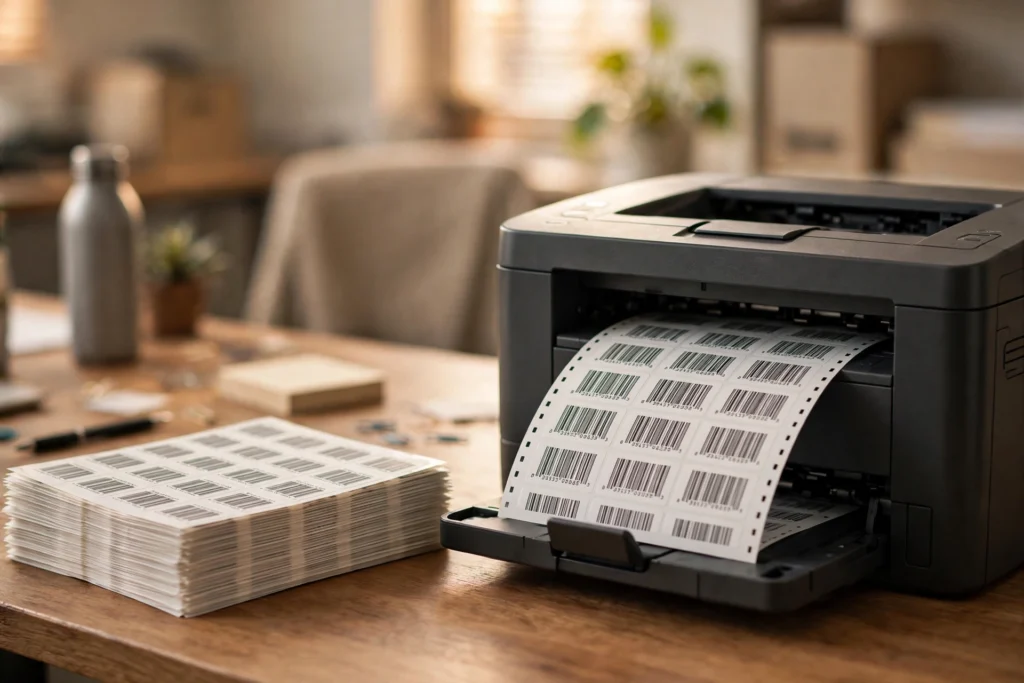
For physical labels, the PDF export with a label-sheet layout does most of the work for you:
- In the generator, choose the PDF output and select a label-sheet layout matching your paper — A4 or Letter — with a grid that matches your label stock (for example, common Avery-compatible layouts) or set custom spacing.
- Open the PDF and print with your printer set to “Actual size” (100%) — never “Fit to page” or “Shrink to fit”, because scaling changes the barcode dimensions and can break scannability.
- Print one test page on plain paper first. Hold it against your label sheet up to the light to check alignment, then scan the test barcode with your phone to confirm it reads correctly.
- Once the test scans, print the full batch on your label stock.
Use a laser printer at 600 dpi or higher for the crispest bars. Inkjet works, but let the pages dry fully before handling — smudged bars do not scan.
Once your codes are generated, follow our guide on how to print barcode labels at home to get them on paper without wasting sheets.
Troubleshooting: When Barcodes Do Not Work
Work through this list in order — it resolves the vast majority of bulk barcode problems:
1. The barcode will not scan.
The usual culprits: printed too small, “fit to page” scaling, low contrast, a missing quiet zone, or a low-resolution printer. Reprint at 100% scale, black on white, with clear margins, and test again.
2. Leading zeros disappeared.
Your spreadsheet stripped them before the generator ever saw the data. Revisit Step 1: format the column as Text, re-enter the codes, and re-export. Remember: never re-open the exported CSV in Excel.
3. “Invalid character” errors.
Your data contains characters the symbology does not support — lowercase letters in Code 39 is the classic case. Switch to Code 128, which accepts the full ASCII set, or clean the data.
4. Check digit mismatches.
For EAN-13, UPC-A, and ITF-14, enter the digits without the final check digit and let the generator calculate it. If your source data already includes check digits, verify them against the original source — a single mistyped digit invalidates the whole barcode.
5. Barcodes look blurry or pixelated.
You scaled up a low-resolution PNG. Regenerate as SVG (infinitely scalable) or use the PDF export for print.
6. The count does not match my spreadsheet.
A header row, blank rows, or trailing empty lines in the CSV are being encoded as barcodes. Clean the file per Step 1 and re-import.
Still stuck? Contact us with a description of the problem and we will help you figure it out.
Frequently Asked Questions
Can I really generate barcodes from Excel for free?
Yes. Upload your CSV or paste your codes into the free bulk barcode generator and create up to 500 barcodes per batch. There is no signup, no watermark, and no limit on how many batches you can run.
Will Excel remove the leading zeros from my barcode numbers?
It will, unless you format the column as Text before entering your codes (Format Cells → Text). If the zeros are already gone, formatting afterwards will not restore them — you need to re-enter the data or rebuild it with the TEXT() formula.
Which barcode type should I choose for products sold in stores?
Use EAN-13 for international retail or UPC-A for North America. Both encode 12–13 digit product numbers and are what checkout scanners expect. Our dedicated bulk EAN-13 generator handles the check digit calculation automatically.
What is the maximum number of barcodes I can generate at once?
500 per batch. If your spreadsheet has more rows, split it into chunks of 500 and run one batch per chunk — batches are unlimited and free.
Is my spreadsheet data uploaded to your servers?
No. All processing happens locally in your browser — your data never leaves your device. This makes the tool safe for internal SKUs, inventory lists, and other sensitive business data.
Can I print the barcodes directly onto label sheets?
Yes. Download the batch as a PDF using an A4 or Letter label-sheet layout with a grid matching your label stock, then print at 100% (“Actual size”). Always print one test page and scan it before running the full batch.
Conclusion
Bulk barcodes from Excel are straightforward once your spreadsheet is clean: one code per row, Text formatting to protect leading zeros, a UTF-8 CSV export, the right symbology for the job, and printing at actual size. Clean data in, scannable barcodes out.
Ready to try it? Open the free bulk barcode generator, import your CSV, and download up to 500 barcodes in minutes — no signup required.

4 Comments