
How to Print Barcode Labels at Home Without Wasting Sheets
Learning how to print barcode labels at home is simpler than most small business owners expect. You do not need a commercial print shop or expensive software. A regular printer, the right label sheets, and a free barcode generator are enough to get started. Whether you are labelling handmade products, organising stock in a spare room, or preparing shipments for an online store, printed barcodes make every item faster to scan and easier to track. This guide walks you through the whole process: choosing a printer, picking label sheets, generating the codes, setting the layout, and testing every label so it scans the first time.
What Do You Need to Print Barcode Labels at Home?
The short answer: four things. A printer (inkjet, laser, or thermal), adhesive label sheets or rolls that match it, a tool to generate the barcodes, and something to test-scan the result, such as a phone with a free scanner app. That is the whole shopping list. Everything else in this guide is about choosing the right version of each item so your first batch actually scans.
Can You Use a Regular Inkjet or Laser Printer?
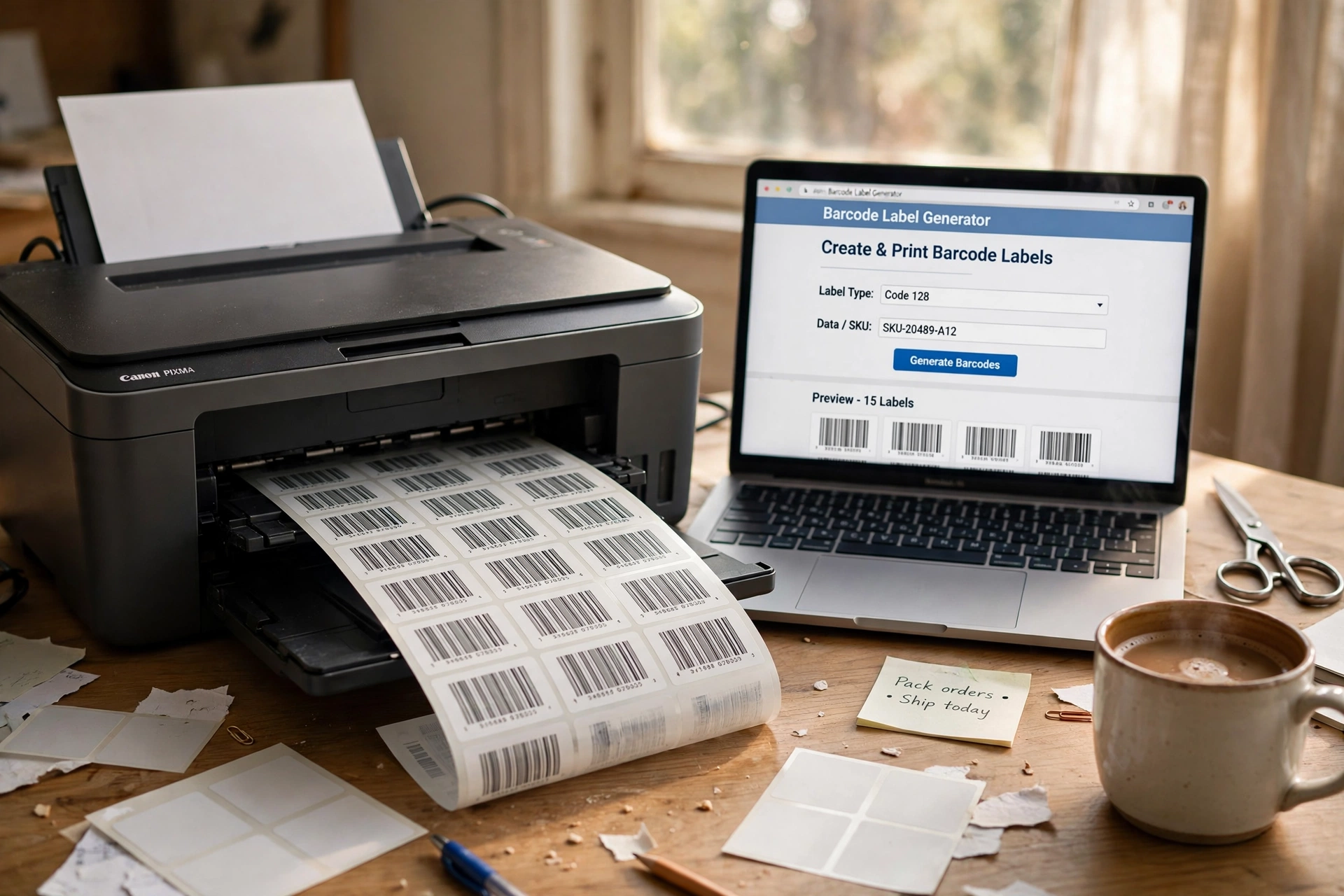
Yes. If you only print labels now and then, the printer you already own is the cheapest way to start.
Inkjet printers are good for small batches and colour labels. They print sharp graphics and let you add logos or colour branding next to the barcode. The downside is running cost: ink cartridges are expensive, and ink can smudge if the label gets wet or is handled a lot. If you use inkjet, buy label sheets made for inkjet printers so the ink dries properly on the surface.
Laser printers produce sharp black text and barcodes, and fused toner resists water and smudging better than inkjet ink. They are a solid choice for office shelves, file boxes, and retail price labels. One caution: the inside of a laser printer gets hot, so use label sheets rated for laser printers. Cheap sheets not rated for the heat can warp, jam, or melt adhesive inside the machine.
The rule of thumb: use what you own until your label volume justifies a dedicated printer. For most home businesses, that tipping point arrives when you print labels several times a week.
Do You Need a Thermal Label Printer?
Not at first, but a thermal printer is the best upgrade once labels become part of your weekly routine. There are two kinds, and they are not the same.
Direct thermal printers use heat to darken special heat-sensitive labels. There is no ink, toner, or ribbon to buy, which makes them very cheap to run. They print a shipping label in about a second and are the standard choice for shipping labels, price tags, and short-term stickers. The trade-off: the print fades over time, especially with heat or sunlight, so they are wrong for labels that must last years, such as asset tags or outdoor labels.
Thermal transfer printers use a heated print head to transfer ink from a ribbon onto the label. These labels are durable and survive warehouses, moisture, and outdoor storage. They cost more to buy and need replacement ribbons, but they are the right tool for long-lasting product and asset labels.
| Printer type | Best for | Ongoing cost | Label lifespan |
|---|---|---|---|
| Inkjet | Small batches, colour branding | Ink cartridges | Good indoors, smudges when wet |
| Laser | Office, retail, document labels | Toner cartridges | Good, resists water and smudging |
| Direct thermal | Shipping labels, price tags | Labels only, no ink | Fades with heat and sunlight over time |
| Thermal transfer | Product, asset, warehouse labels | Labels plus ribbon | Long-lasting, survives harsh conditions |
How Do You Create the Barcodes?
Never draw a barcode by hand or copy one from a random image. A barcode encodes your data in a precise pattern, and a sloppy source means a label that will not scan. The reliable way is to generate each barcode from your actual data with a proper generator.
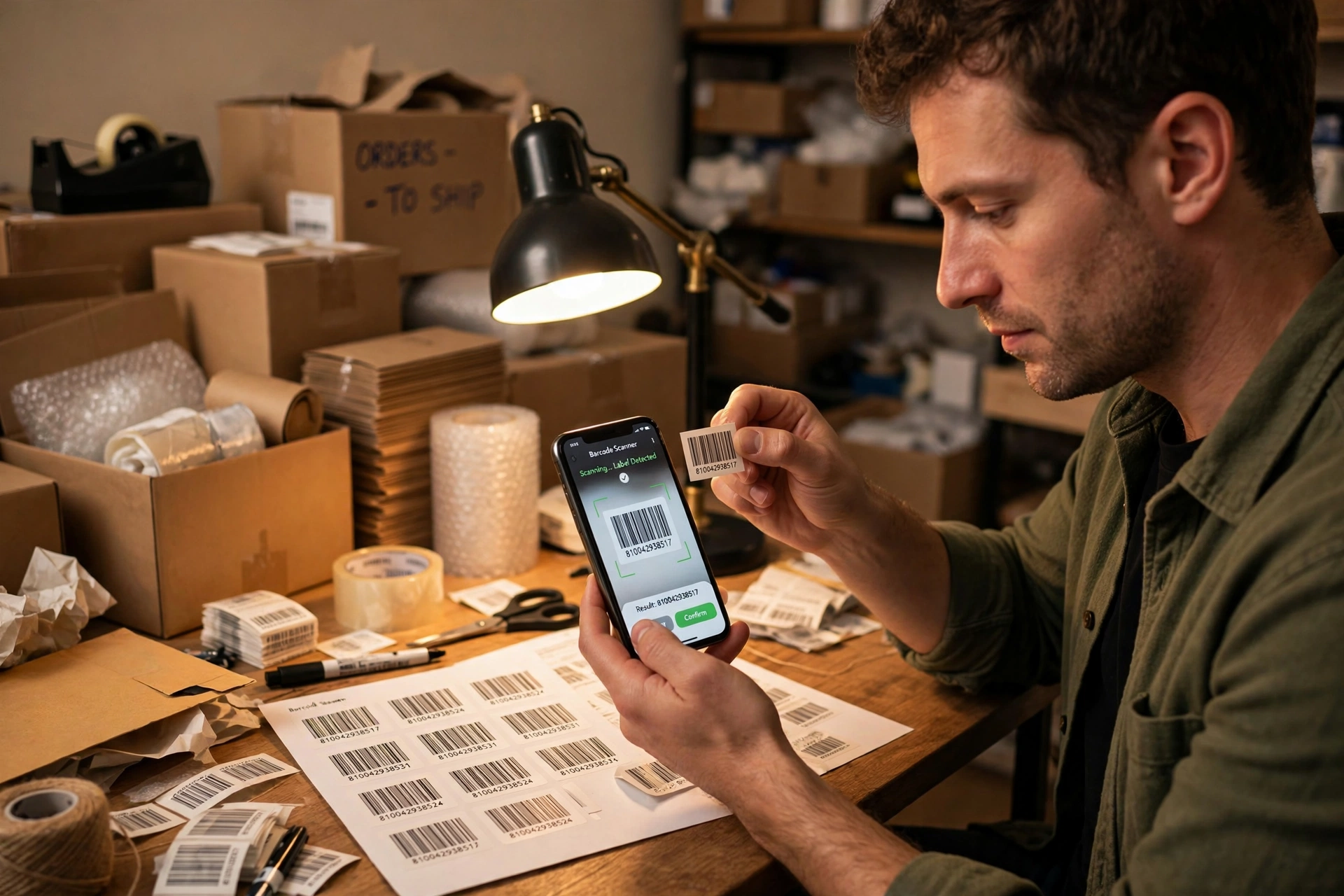
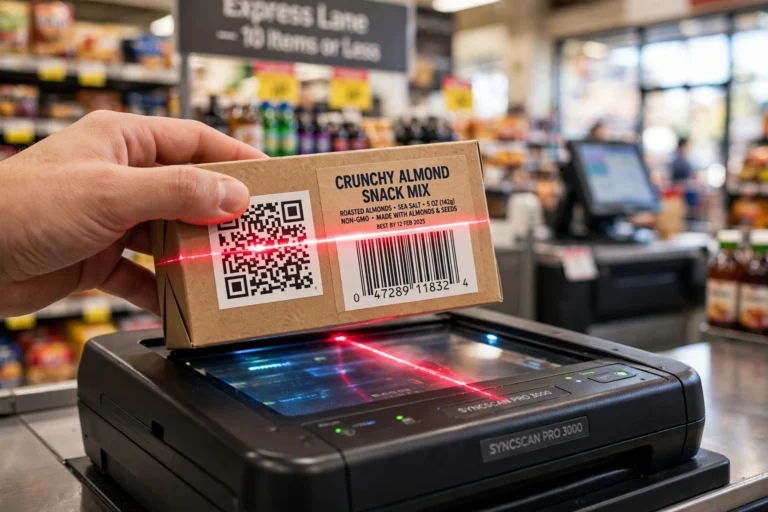
For a handful of items, a single barcode generator is enough. For real product lists, use a bulk generator: paste your SKUs or product codes, or import your product list straight from Excel or CSV, and download all the barcodes at once instead of making them one by one. Pick the format that matches your use case. Generate Code 128 barcodes in bulk for general inventory and shipping, or create UPC barcodes for retail products if your items sell in stores that require standard retail codes. If your numbers include a check digit, run them through a check-digit calculator first so every code is valid before it reaches paper. And if you are torn between formats, read up on when a QR code fits better than a one-dimensional barcode so you print the right symbology the first time. Selling outside North America? Create EAN-13 barcodes in bulk for the international retail standard.
Which Label Sheets Should You Use?
Match the sheet to your printer type. Inkjet sheets for inkjet printers, laser-rated sheets for laser printers, and thermal rolls or fanfold stock for thermal printers. Mixing them up causes smudging, jams, or labels that peel off in the machine.
The most common approach for inkjet and laser owners is Avery-style sheets with numbered templates. Find the template number printed on your sheet packaging, then use that same number in your label software or template so every barcode lands inside its label. Full-page sheets are flexible because you design the grid yourself, while pre-cut sheets with per-label outlines save layout time.
For thermal printers you buy rolls instead of sheets: 4 by 6 inch rolls for shipping labels are the standard, with smaller sizes for product and price labels. Whatever printer you use, think about the label material. Plain paper labels are cheap and fine for dry indoor use. Polypropylene or polyester labels resist water and chemicals, which matters for food, cleaning products, or anything stored in a garage. Finally, check the adhesive: permanent for products, removable for price tags you will peel off later.
How Should You Lay Out the Labels?
Three settings decide whether a label scans: resolution, size, and quiet zone.
Resolution (DPI). Most desktop and thermal printers print at 203 DPI, which is enough for standard-size labels and ordinary barcodes. If your barcodes are small or packed with characters, step up to 300 DPI so the bars stay crisp. Higher than that is only needed for very small text or dense codes on tiny tags.
Size. Bigger barcodes scan more reliably, especially with phone cameras. Do not shrink a barcode to fit a crowded label. If the code looks cramped, use a larger label or split the information across two labels.
Quiet zone. Every barcode needs a clear white margin around it. Scanners use this empty space to find where the code starts and ends, so text, borders, or logos must not touch it.
Before printing the full batch, open your print dialog and set scaling to Actual size (100 percent). Turn off Fit to page or any auto-scaling option, because even slight resizing changes bar proportions and can break scanning. Then print one test sheet on plain paper, hold it against a real label sheet, and check that each barcode sits inside its label outline. This thirty-second check saves entire sheets from the bin.
How Do You Test Labels Before Printing the Full Batch?
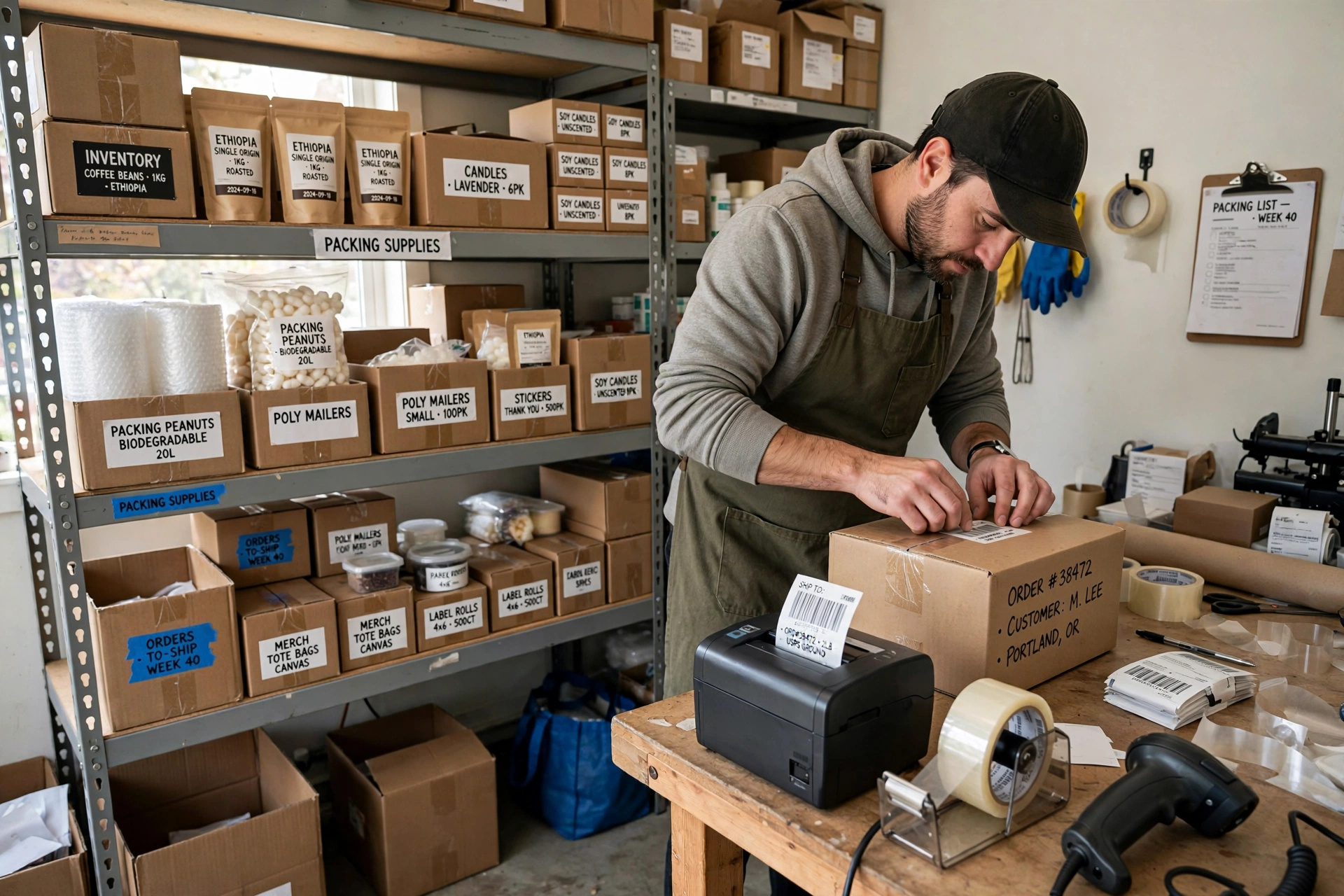
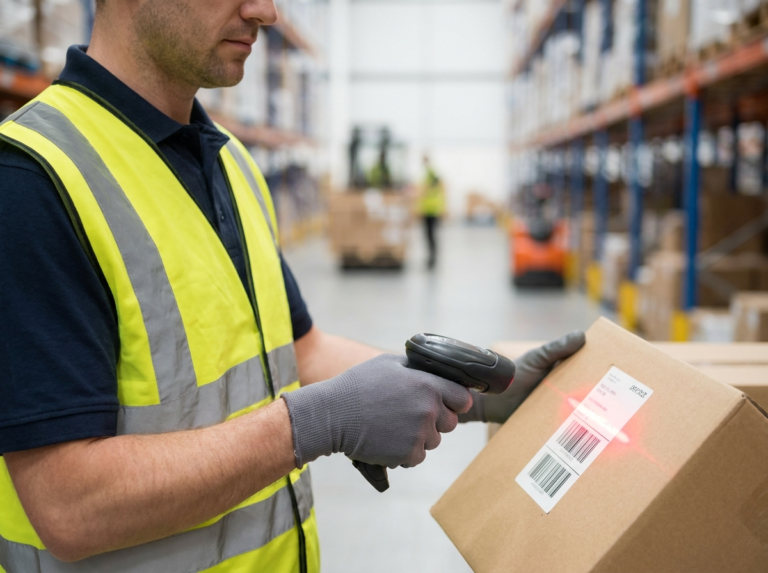
Always print a small test batch first: one sheet or a few labels from the roll. Then scan each one with the same type of scanner your labels will meet in real life. If customers will scan with phones, test with a phone. If a warehouse uses handheld scanners, test with one of those.
Scan at a normal distance and angle, not pressed against the lens. Check that any small printed text next to the barcode is readable too. If a label fails, adjust the size or settings and test again. Never reprint a whole batch hoping the problem fixes itself.
A printed label you cannot verify is just decoration. If you ever need to confirm what a printed code actually contains, decode and verify a printed barcode with a free decoder before the labels go on your products.
Why Will My Printed Barcode Not Scan?
When a label fails to scan, the cause is almost always one of these:
- Scaling was on. Fit to page shrank the barcode and changed the bar widths. Reprint at 100 percent.
- The barcode is too small. Enlarge it or move to a bigger label.
- Low contrast. Barcodes need dark bars on a light background. Coloured backgrounds, red bars, or reverse printing (white on black) confuse many scanners.
- Smudged ink. Wet inkjet prints, low toner, or a dirty print head blur the bars. Let sheets dry fully and check ink levels.
- Crowded quiet zone. Text or borders touching the code block the scanner. Give it clear white space.
- Glossy reflections. Very glossy labels can reflect light into the scanner. Matte labels scan more reliably under bright lights.
- Wrong barcode type. Some codes cannot hold certain characters. Generate the code from your real data with the right format instead of forcing the wrong one.
Work through this list from the top down and you will find the culprit in minutes.
Start With a Test Sheet, Then Scale Up
Once you have done it once, how to print barcode labels becomes a routine job instead of a project. Generate clean codes from your real data, match your sheets to your printer, print at actual size with a proper quiet zone, and test-scan before every batch. Follow those four habits and your labels will scan the first time, whether they are going on handmade products, on stock for a small warehouse or store room, or on parcels headed to customers. For larger lists, skip the one-by-one work: import your product list straight from Excel or CSV into the free bulk generator and print the whole run in minutes. And if you are selling on Amazon and need FNSKU-style labels, the same process applies, just with the smaller label sizes Amazon shipments expect.
Frequently asked questions
Can I print barcode labels on a normal home printer?
Yes. An inkjet or laser printer works fine for small batches as long as you use label sheets rated for that printer type. Set the print scaling to 100 percent and test-scan before the full run.
What is the cheapest way to print barcode labels at home?
For ongoing volume, a direct thermal printer is the cheapest to run because it needs no ink or toner, only the label rolls. For occasional labels, a laser printer you already own plus laser-rated sheets costs the least upfront.
What paper do I need for barcode labels?
Adhesive label sheets for inkjet or laser printers (Avery-style sheets with matching templates), or thermal label rolls for thermal printers. Choose paper labels for dry indoor use and polypropylene or polyester for moisture or chemical exposure.
What size should my barcode be?
As large as your label comfortably allows. Bigger barcodes scan more reliably, especially with phone cameras. Print at a minimum of 203 DPI, use 300 DPI for small or dense codes, and leave a clear white quiet zone around the code.
Why is my printed barcode not scanning?
The most common causes are print scaling set to Fit to page, a barcode printed too small, low contrast, smudged ink, or text crowding the quiet zone. Reprint one label at 100 percent scaling with dark bars on a white background and test again.
Do printed barcode labels fade?
Direct thermal prints fade over time, especially with heat or sunlight. Laser prints and thermal transfer prints last much longer. For labels that must survive years, use thermal transfer or laser printing.
One Comment